# 👆 1.6 Interacting with the Graph
What is a graph? Graph is a conveniant tool to explore your documents.
Nodes are terms (n-grams) selected in your Map terms list. Node size is proportional to the **number of documents** with the associated term (n-grams).
Edges between nodes represent proximities of terms according to a specific distance between your documents. Link strength is proportional to the strenght of terms association.
- Click on a node to select/unselect and get its information.
- In case of multiple selection, the button unselect clears all selections.
- Use your mouse scroll to zoom in and out in the graph.
- Use the node filter to create a subgraph with nodes of a given size range (e.g. display only generic terms).
- Use the edge filter so create a subgraph with links in a given range (e.g. keep the strongest association).
## <center>Toolbar
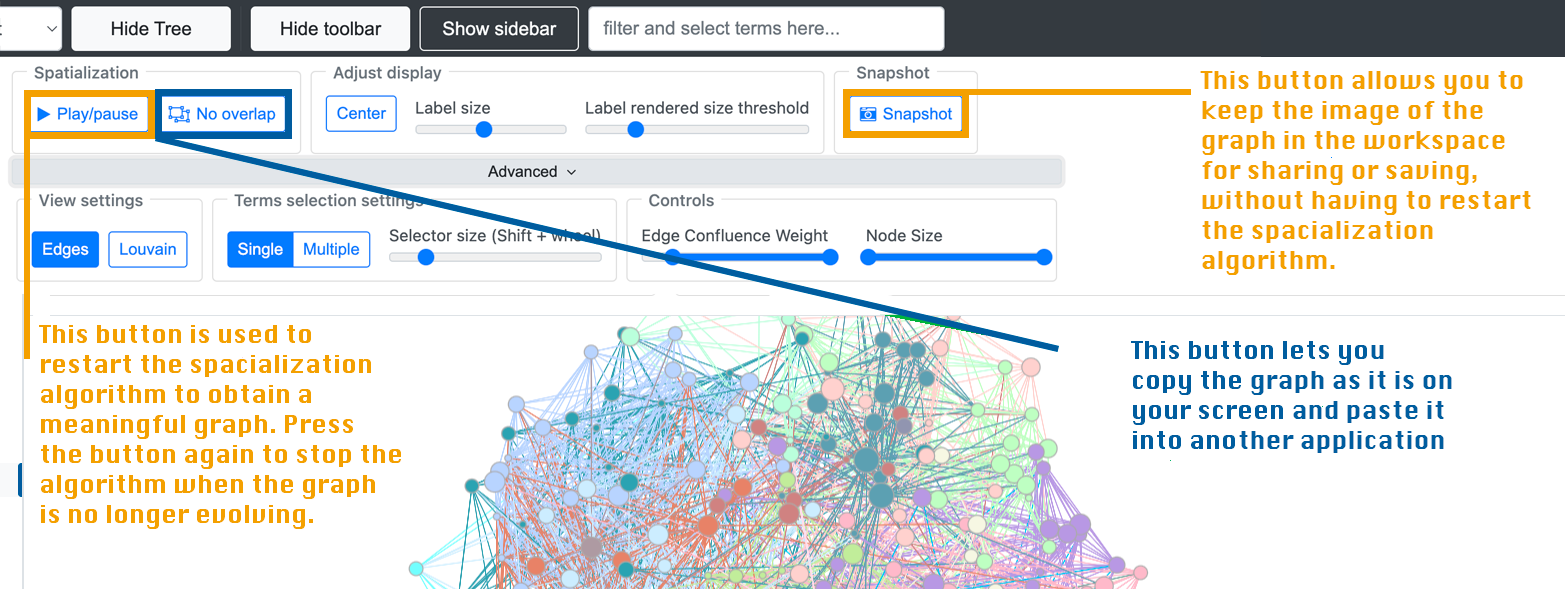
By default, the `Toolbar` is hidden. When graph generation is launched, GarganText calculates for 5 seconds by default. If the corpus is large, this time may not be sufficient for clustering. If you wish to continue clustering, you can do so in the `Toolbar`.
### <center> Actions
#### <center>View settings
<center>
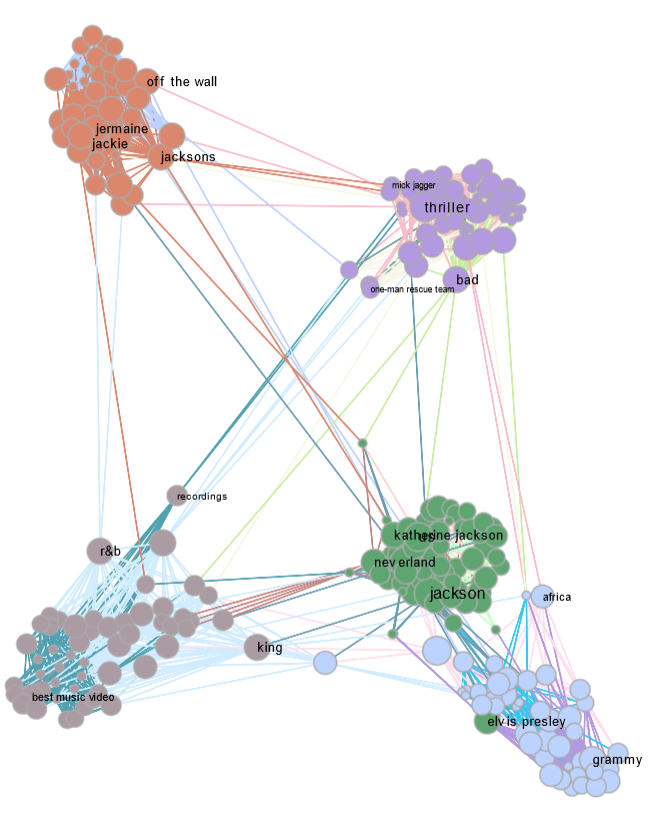
By default, the graph is __centered__, nearby __clusters__ are shown in the __same color__ and __links between nodes are indicated__ by lines.
If you zoom in on a cluster, as in ++the image below :++
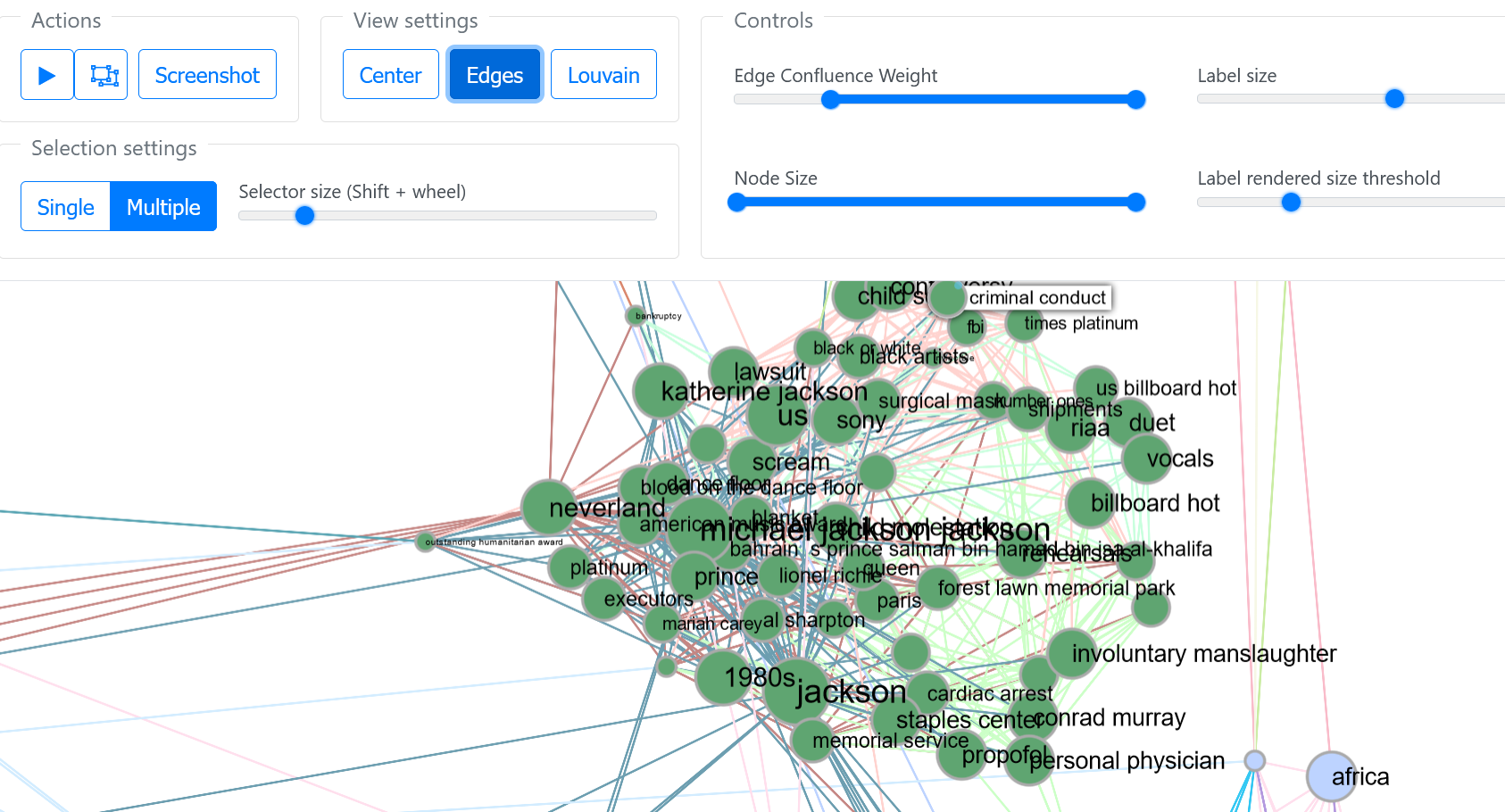
Click on `Center ` to view __the entire graph__
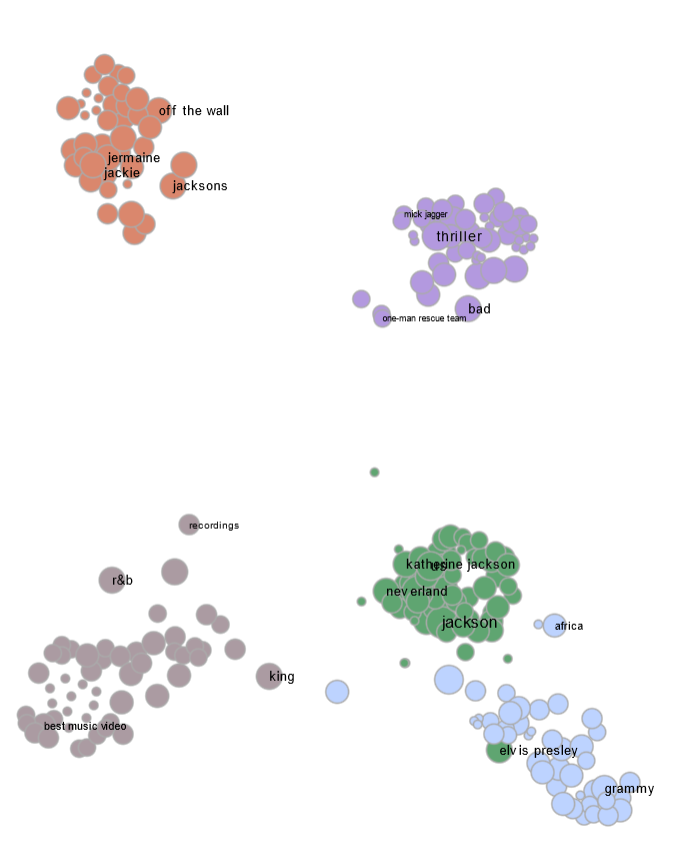
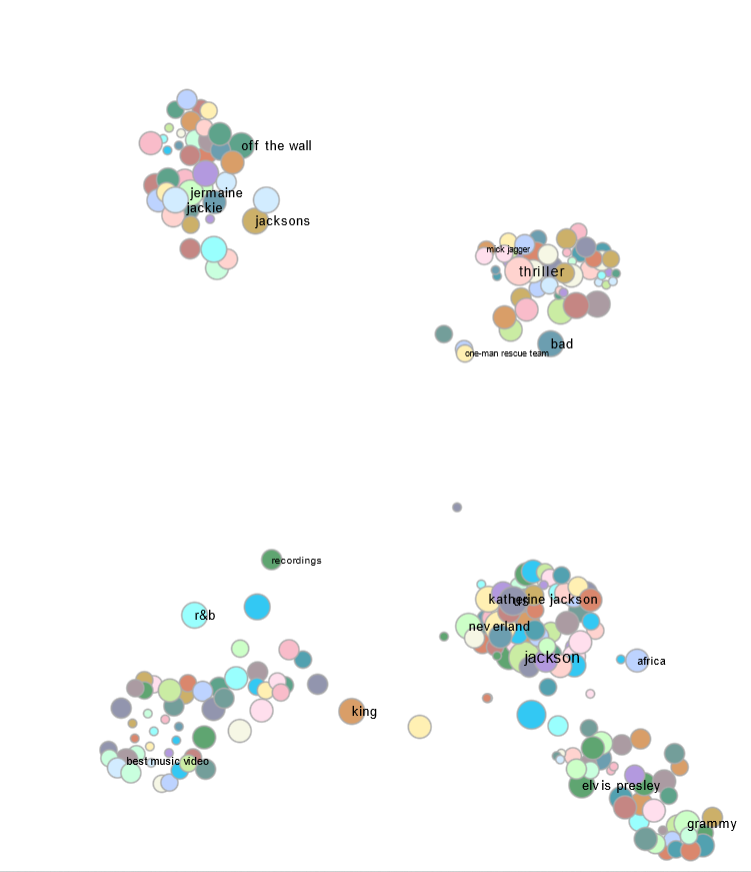
The `Edge ` button allows you to __hide the lines between nodes__, if you want to concentrate on grouping them together.
Finally, the `Louvain` button gives a __different color to all nodes__, thus erasing groupings within clusters.
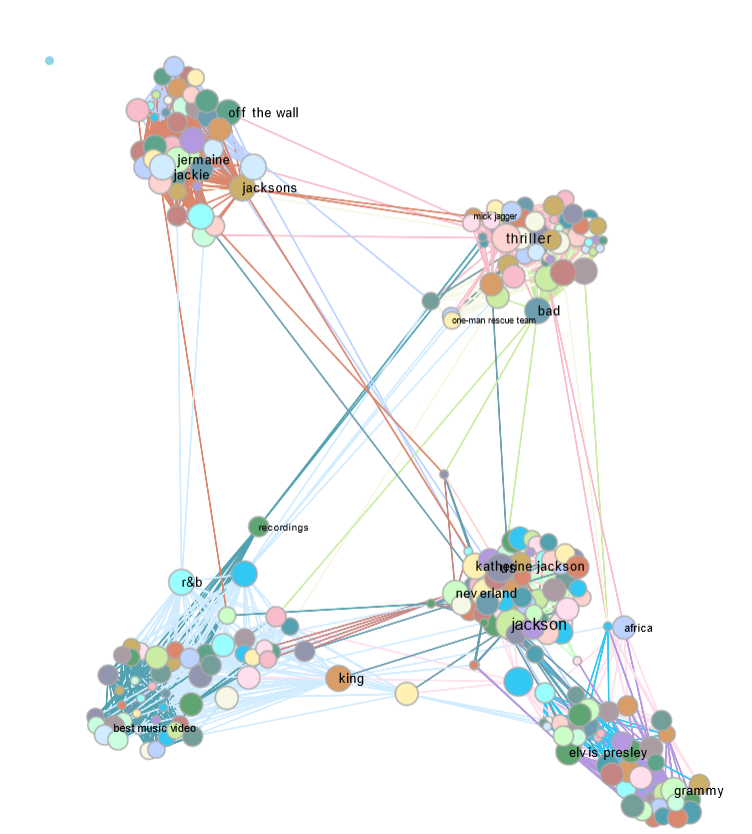
Combinations of `Edge` and `Louvain ` allow __different colors__ and __not the link strokes.__
#### Selection settings
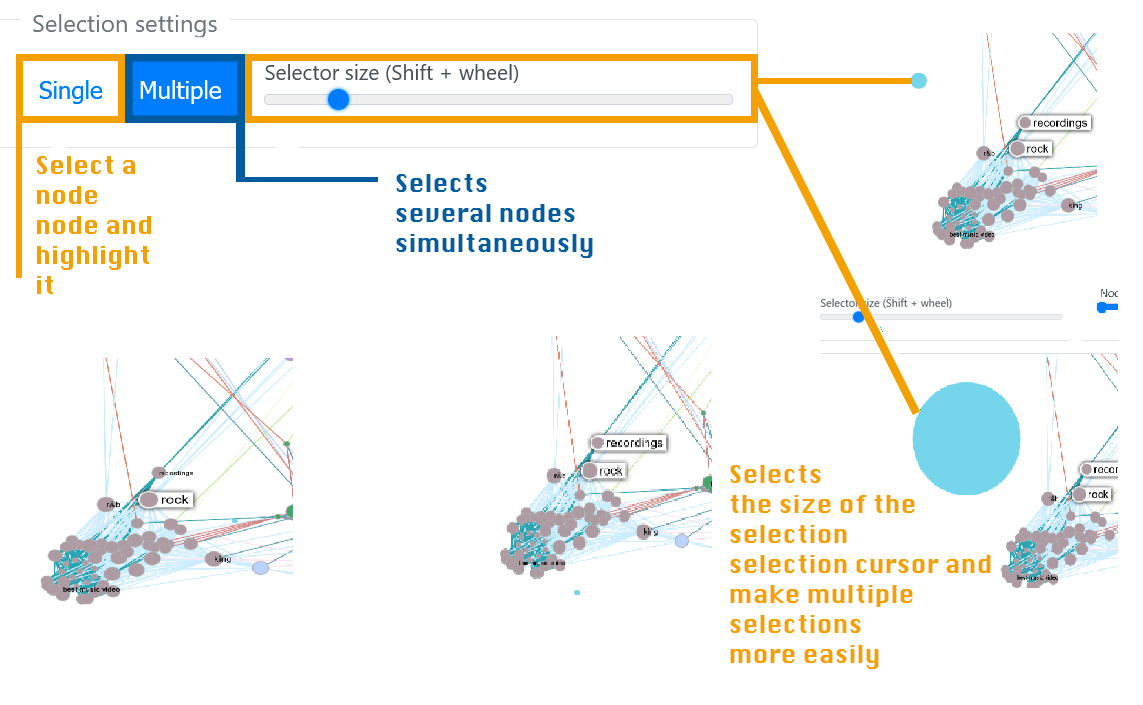
You can __select a single node__ and consult, for example, the related terms and documents containing the word indicated in the node (rock, for example, below), or select several nodes and consult them as well.
__Multiple selection__ can be fine or very wide, for example, if you want to take all the words in a cluster.
#### Controls
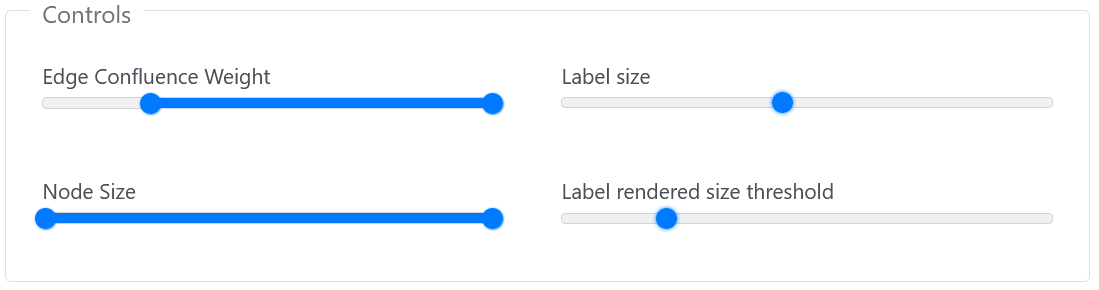
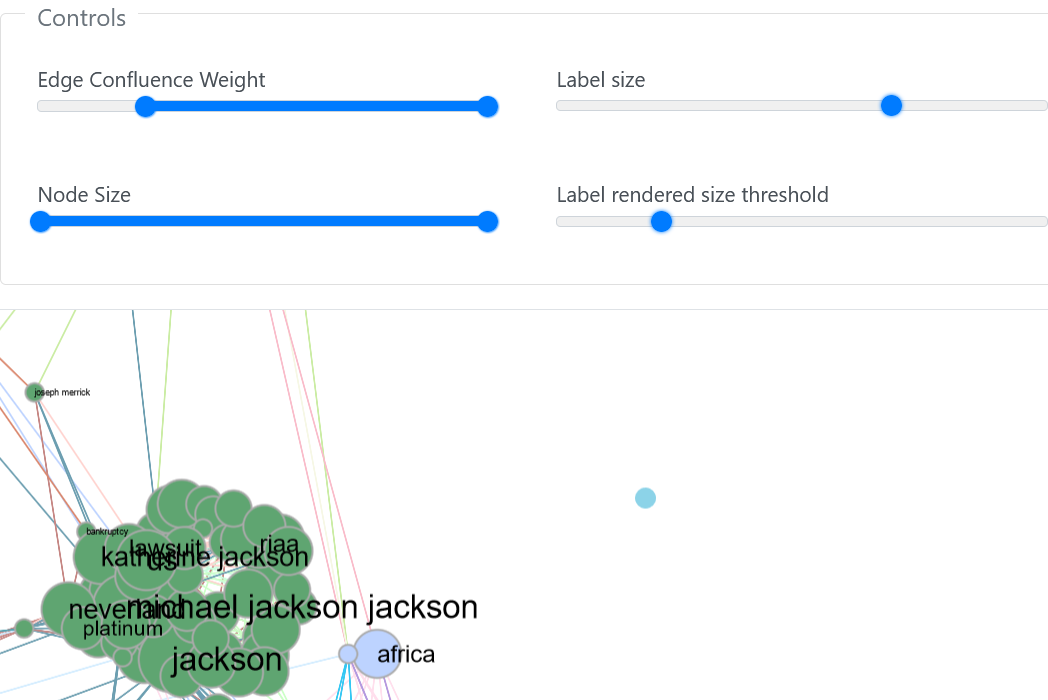
__4 parameters__ are adjustable in the __control area__. The most frequently modified is `Label size`, which allows you to __increase the font size__ of the term associated with a node (or respectively decrease it)
| Label Size decreased | Label Size increased |
| -------- | -------- |
| 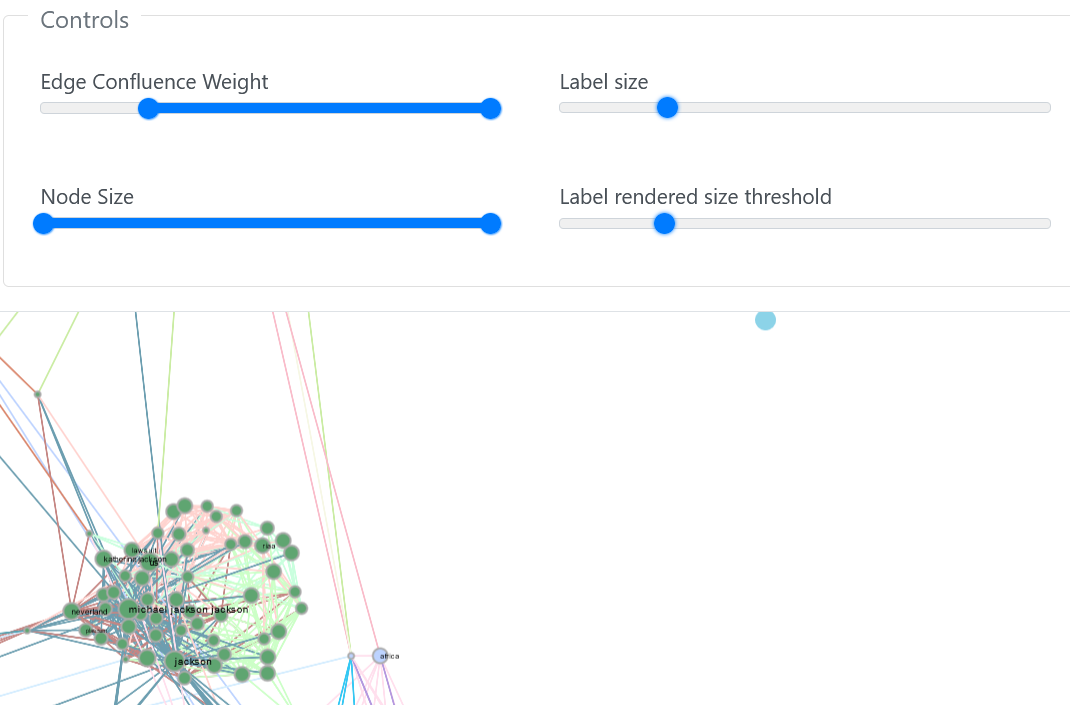 | 
__Confluence__: __links__ between clusters and links within a cluster
| Node Size Reduced | Node Size Large |
| -------- | -------- |
|
| Selection of nodes by size[](/uploads/upload_782a61c59dd0cf17e4c96f1fad7a59c7.png)| Keep all nodes of all sizes[](/uploads/upload_70453a38a4639b014f48a4134445eed8.png)
|
__Node label size__ can be __adjusted.__
| Label rendered size threshold high | Label rendered size threshold low | Label rendered size threshold high
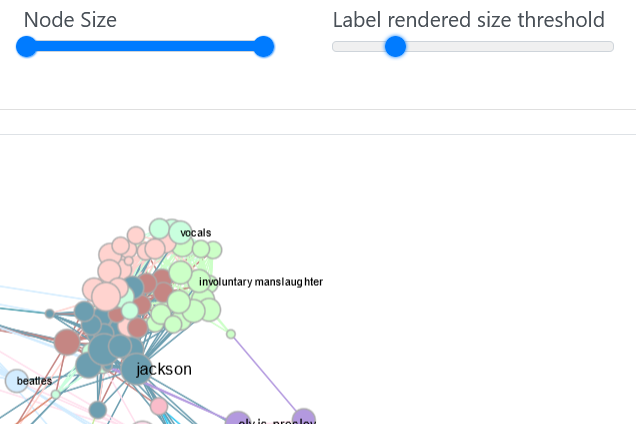|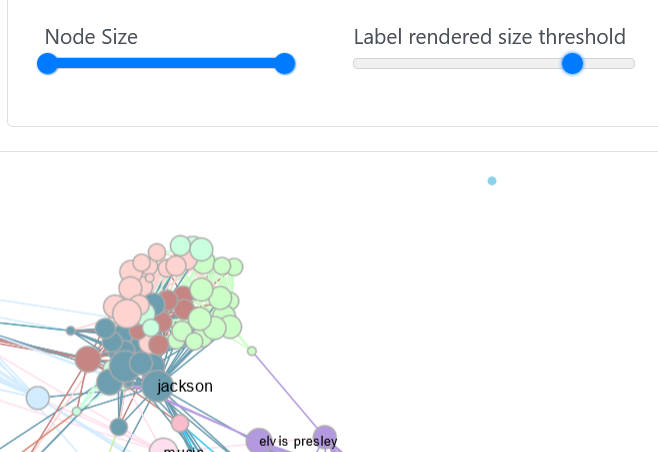|